Docker containers
Learn how to create a container in ispmanager, attach persistent storage and find out why an application stopped on your VPS.
Why can’t I see Docker in my VPS menu?
Managing Docker through ispmanager requires the Pro or Host edition and administrator access. If you use a website owner account, the team managing the VPS may handle Docker for you.
- Tell Dimensis which VPS you use and which application you want to run.
- The administrator can check the licence and look in the software settings to see whether Docker is installed.
Once the component is installed, Docker appears in the administrator’s main menu.
How do I create a container from an image?
As the VPS administrator, you can choose an image from Docker Hub or one already on the server. The tag identifies the version you want to deploy.
- Open Docker, choose the option to create a container and search for the image.
- Select the image and tag. Name the container and configure the ports, persistent storage and memory your application needs.
- Confirm and return to the list while the panel finishes creating the container.
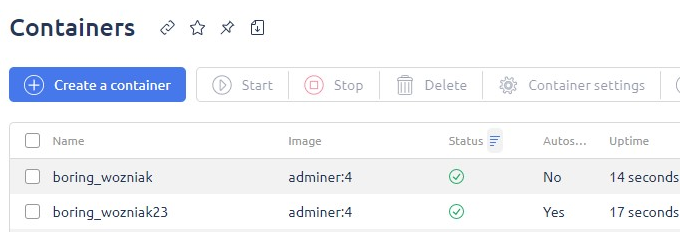
Check the container’s status and try an application feature, such as opening its home page.
How do I keep my data when I replace a container?
Mount a Docker volume or a folder from the VPS at the path where the application writes its data. You can then attach the same files to the replacement container.
- Check the image documentation for the directory used for uploads or database files.
- When you create the container, select a volume or server folder and enter the mount point inside the container.
- Agree with Dimensis which data to back up and how to restore it. The ispmanager backup does not automatically cover Docker.
Test a restore in a separate environment to confirm that you can recover the data.
Where can I find out why a container stopped?
Each container has its own log. If the application stops immediately after startup, check the entries from that time.
- Find the container in Docker and check its status and uptime.
- Open the row’s actions menu and choose Container Log. Look for the first error recorded at startup.
- If you need help, send Dimensis the container name, image tag, time and error message. Remove credentials before sharing the log.
After fixing the cause, start the container and check that the application responds.