Git repositories
With the ispmanager Git module, you can connect a repository to a website on your Dimensis managed VPS. The panel keeps a working copy and publishes files to the website’s deployment directory.
What do I need to use Git in the panel?
The module requires ispmanager Lite, Pro or Host version 6.153 or later, with the git utility installed on the server.
- Sign in with the website owner’s account and open Sites.
- If you cannot see Git repositories, ask Dimensis to check the module and your account’s Git repositories permission. If a reseller manages the account, the reseller also needs this permission.
- If your project needs custom deployment commands, the website owner’s account needs the Shell client permission.
Open the website’s menu and check that Git repositories appears.
How do I connect a repository to a website?
Saving the form clones and deploys the project immediately, even if automatic synchronization is off.
- For an existing website, open Sites → website menu → Git repositories → Create. To create a website and deploy to its root, go to Sites → Create site → Git.
- Enter the clone URL and repository name. Specify the branch to publish, or leave the field blank to use the default branch.
- Choose the deployment directory relative to the owner’s home directory and review Existing files before saving. The option to remove extraneous files permanently deletes files that exist only in the destination. Back up any files you want to keep before saving.
Check the first deployment in Deployment log and open the domain to see the published version.
How do I grant access to a private repository?
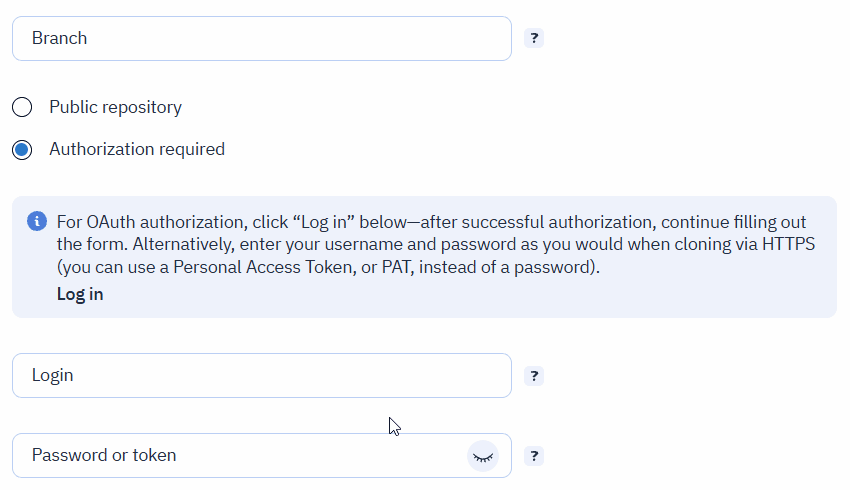
Select Authorization required and choose a method supported by your Git provider. Read access is enough to clone and update the repository.
- For HTTPS, authorize the panel with OAuth if your provider supports it. If you use an access token, enter your username and put the token in the password or token field.
- For an SSH URL, copy the public key generated by ispmanager and add it to your repository as a read-only deploy key before saving.
If the log shows Authentication failed, check your credentials and the token’s expiry date. If it shows Permission denied (publickey), check the repository’s deploy key.
How do I publish changes manually?
Pull updates the working copy. Deploy publishes that copy to the website’s deployment directory.
- Make changes in the remote repository. Pull overwrites local edits to the server’s working copy.
- Open Sites → website menu → Git repositories, select the repository and click Pull. Verify the revision in Commit log, then click Deploy.
Review Deployment log and open the website in your browser to verify the change.
How do I automate publishing?
Automatic synchronization uses a webhook to update the working copy. Automatic deployment publishes the files after each synchronization.
- Enable Automatic synchronization. To publish automatically, also enable Automatic deployment.
- Add the webhook URL to the repository settings. Your Git provider needs to reach the panel on port 1500. Keep the URL private because it contains a secret token.
Push a test change to the configured branch. Check the log for synchronization and, if enabled, deployment.