Python
Deploy and manage a Python application through ispmanager on your Dimensis managed VPS.
Why can’t I select Python for my site?
The Python module must be available on the server and the site owner’s account must have permission to use it.
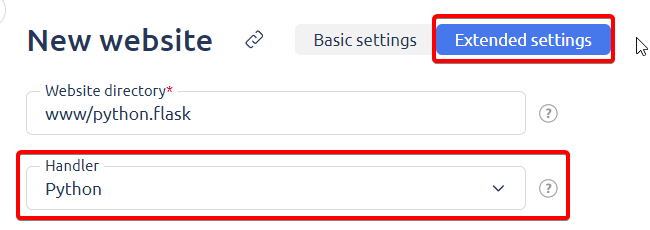
- Open Sites → Create a website → Extended settings and look for Python in the Handler field.
- If the option is missing, tell Dimensis your domain, panel username and required Python version. The administrator can check the module under Settings → Software configuration and the Can use Python permission under Users → Edit → Access.
Reopen the form and check that you can choose Python and a compatible version.
How do I configure the site’s Python handler?
Choose the Python version your project requires and its application mode. Use Python web server mode for applications that listen on a port or Unix socket. CGI mode runs scripts through Apache where available.
- In Sites, create a site using Extended settings or edit an existing site. Choose Python in the Handler field.
- Under Handler (Python), select the application mode and Python version.
- In Python web server mode, choose Port or Socket file. Enter the startup file in Path to server, relative to the site root, and fill in Server arguments as required by your application server. Save your changes.
If the panel assigns a port, reopen the settings and check that your application server listens on that port. If you use a socket, check that the application uses the corresponding socket path.
How do I upload the project and install its dependencies?
ispmanager can install the packages listed in requirements.txt into the site’s virtual environment.
- Go to Sites → Website files and upload the project files. Put requirements.txt in the site root.
- Return to Sites and open the site’s three-dot menu. Select Install Python packages.
- If you have shell access, you can open Shell client from the same menu. It opens as the site owner with the virtual environment on the PATH. Run python --version to check the interpreter.
After installation, open Browsing Python packages and check that the required packages are listed.
How do I restart my application and check that it responds?
In Python web server mode, restart the site process after deploying code changes or updating dependencies.
- If the site is disabled, select it in Sites and use On to enable it.
- Open the site’s three-dot menu and choose Restart (Python).
- Once the process shows as running, open the domain in your browser and test an application route.
Check that the route returns the expected response. When the process is running, hover over the Python status icon to see the port or socket path.
What should I check if the process fails to start or the site returns an error?
Check the Python status for startup failures and use the site’s error log to investigate the request.
- In Sites, hover over the Python status icon to check the process state.
- Check that the startup file exists and is readable by the site owner, that dependencies are installed and that the connection settings match.
- Check the site’s error log if logging is enabled. If you need help, send Dimensis the domain, the time of the error and the relevant message.
After fixing the issue, restart the process and test the same route again.