Node.js
Deploy and maintain a Node.js application in ispmanager when the service is enabled on your Dimensis managed VPS.
How do I check whether I can use Node.js?
Node.js needs to be installed on the server and enabled for the account that owns the site.
- Sign in to ispmanager as the site owner and open Sites or Websites.
- Look for Node.js project in the site creation menu, or edit the site and check whether Node.js is available under Handler.
If the option is missing, send Dimensis the domain, the site owner’s account name and the Node.js version your project needs so we can check availability.
How do I prepare and upload my project?
Include package.json with your code. Declare the application’s dependencies and define a startup script under scripts, such as start with the command node server.js.
- Open Sites → Create site → Node.js project. Enter the domain and choose a Node.js version your application supports.
- Choose Port if the application reads the PORT variable, or Socket file if it is configured to listen on the Unix socket specified by SOCKET.
- Select Upload the application code, upload the project with package.json at its root, and click Create.
On the first deployment, ispmanager reads package.json and installs dependencies. If installation fails, open Details in the notification.
How do I configure application startup?
In the project menu, you can choose a script from package.json or enter the command that starts your application.
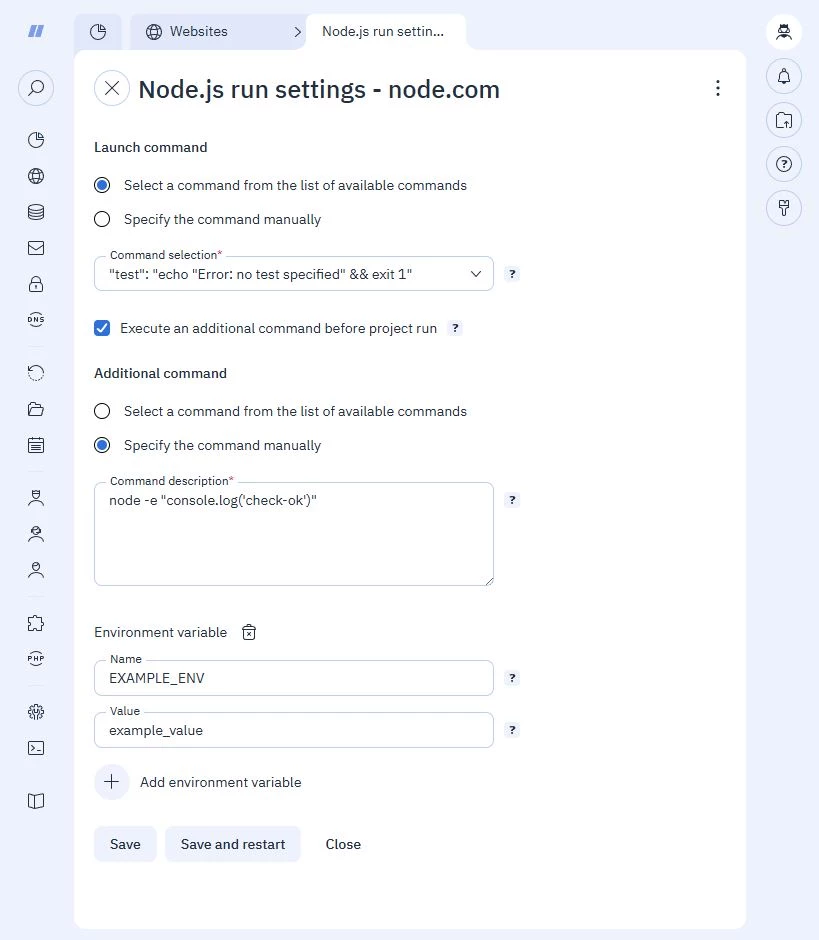
- Select the project in Sites and open Run settings (Node.js) from the three-dot menu.
- Choose the launch script, usually start, and add any environment variables the application needs by entering their names and values.
- Save your changes, run Npm install from the site menu, and select Restart (Node.js).
Once the panel shows that the application has started successfully, open the domain and test a page or route that should respond.
How do I install or update dependencies with npm?
Npm install installs the dependencies declared in package.json. Use it after editing the dependencies manually or changing the startup settings.
- Select the project in Sites and run Npm install from the three-dot menu.
- To add a package in the panel, open View Node.js packages → Install and enter its name and version as package@version.
- Wait for installation to finish, then restart the project to apply the changes.
Open View Node.js packages and check that the package is listed with the expected version.
Where can I see why the application failed to start?
The project logs show dependency installation errors and errors from the launch command.
- Select the project in Sites and open Log in the three-dot menu. If a restart failed, you can also click the error indicator in the Parameters column.
- Open the file ending in -install.log for npm failures, or the file ending in -error.log for launch command failures.
- After fixing the issue, restart the project and check the domain.
If you contact Dimensis for help, include the domain, the time of the error and the relevant log excerpt with passwords and keys removed.